Guides
Managing clients and their staff
How to add client companies to CertSlate, import staff records, track training history, and keep compliance up to date across all your clients.
3 June 2026
CertSlate is built around the way training companies actually work: you deliver training to multiple client companies, and each of those companies has its own group of staff. This guide walks through how to set that up and keep it up to date.
Adding a client company
- Go to Clients in the left-hand menu.
- Click New client.
- Enter the company name, address, and any contact details you want to store.
Each client gets its own record where you can manage their staff, view their training history, and see their compliance status.
Adding staff members individually
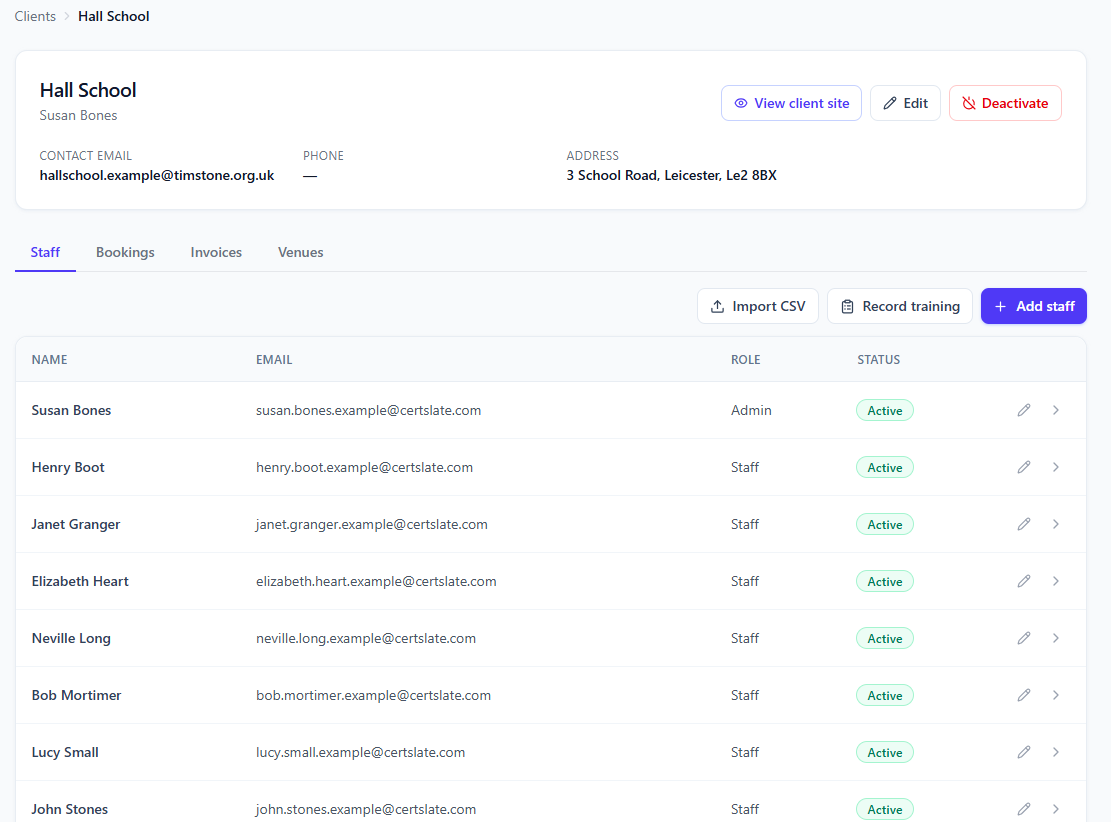
Once you have a client set up, open their record and go to the Staff tab.
Click Add staff member and enter the person’s name and email address. If the staff member has completed training with you before, you can also add historical training records here.
Bulk import
If you have existing records in a spreadsheet, bulk import is the fastest way to get your data into CertSlate.
- Open the client record.
- Click Import staff.
- Download the CSV template and fill in your data.
- Upload the completed file.
CertSlate creates a staff record for each row. If you include completed training data, certificates are generated and emailed to each staff member automatically.
This is particularly useful when you are migrating from an older system or when a new client comes on board with a large existing workforce.
Training history and compliance
Each staff member has a training history tab showing every course they have completed and when their certificates expire.
From the client overview, you can see a compliance summary for the whole company at a glance. Staff with expiring or expired certificates are flagged, making it easy to spot who needs a renewal before it becomes an issue.
Setting up expiry reminders
Reminders go out automatically based on the expiry period set on each course. On the Starter plan, reminders are sent at a standard interval. On the Pro plan, you can set a custom reminder schedule per course or per client.
You do not need to manage this manually — CertSlate sends the emails and logs each one against the staff member’s record.
Moving a staff member between clients
If a staff member moves from one client company to another, you can transfer their record from the staff member’s profile page. Their full training history moves with them.